Free After Effects presets
Presets made in the studio and shared with the community: counters, connectors, crops, smoke and more, each with a short tutorial.
Presets we made for our own work and tidied up to share. Each one does a single job, from a pie chart with ten animated segments to a box that fits itself to any layer, and each has a short tutorial showing it in use.
Pick a preset, or ask for the whole pack, and we email the file to you.
How to install
- Open your After Effects User Presets folder. On a Mac it is under Documents, then Adobe, then After Effects, then the version number. On Windows it is the same path under Documents.
- Drop the .ffx file into the Shapes or Transform folder named on the preset’s page.
- Right-click in the Effects and Presets panel and choose Refresh List. The preset appears under Animation Presets, then User Presets.
The presets
15 After Effects presets, each with a short tutorial, sent by email.
- 0:34
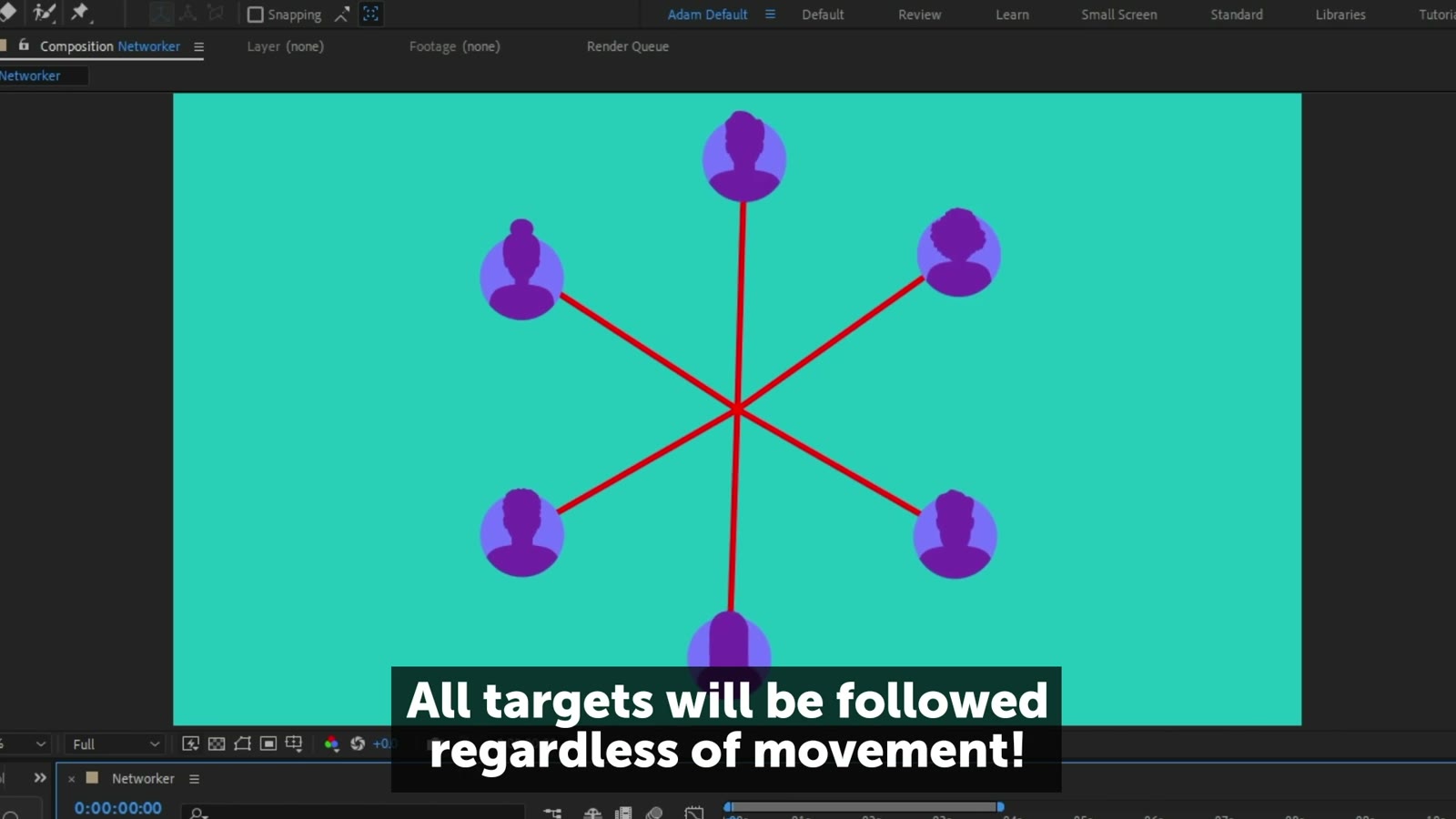
Networker
Draws lines from a shape layer to up to ten other layers and keeps them connected however the layers move.
 0:28
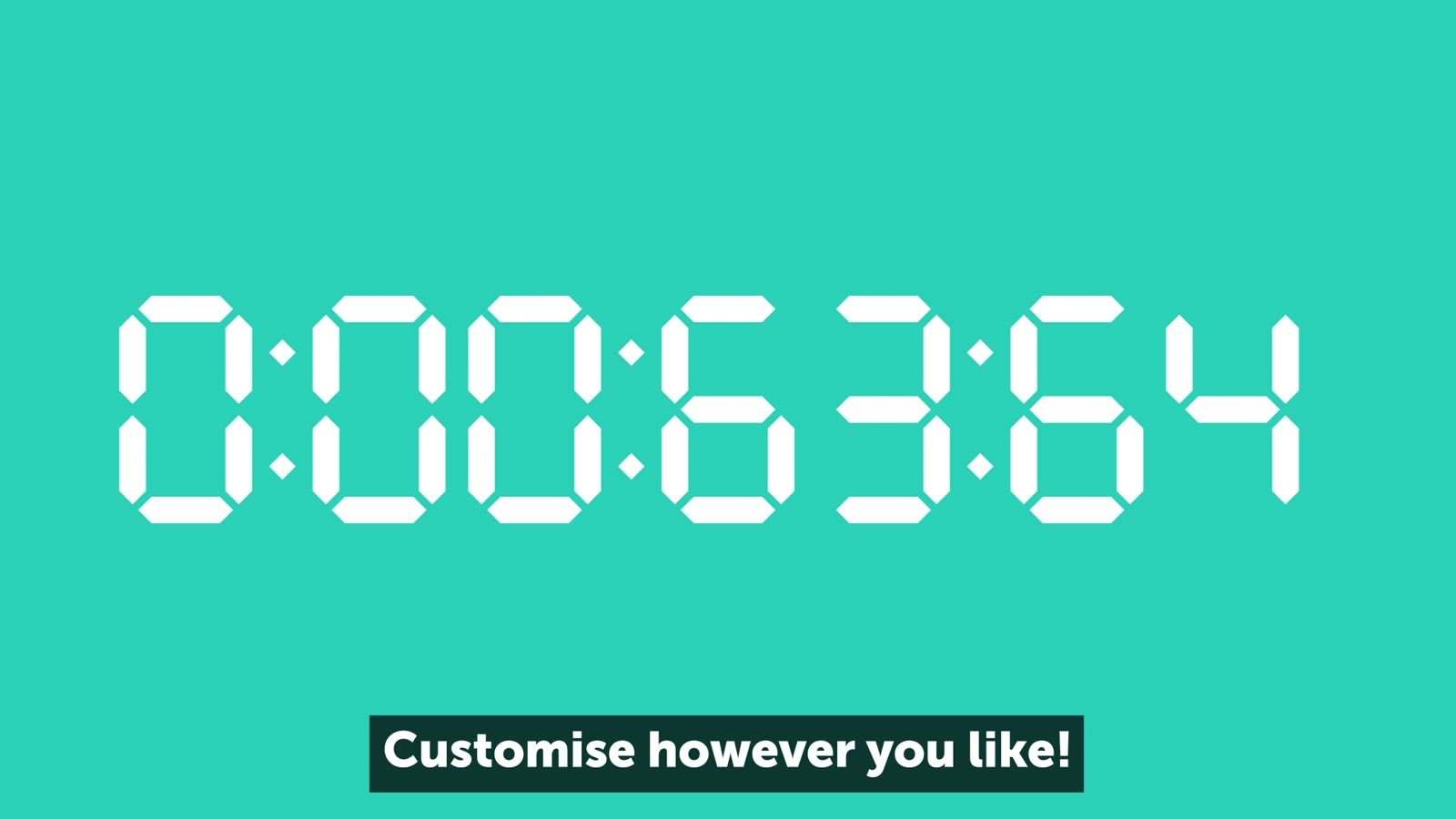
Digital Number Counter
Builds a digital number counter on a shape layer, with plenty of settings to make it your own.
 0:41
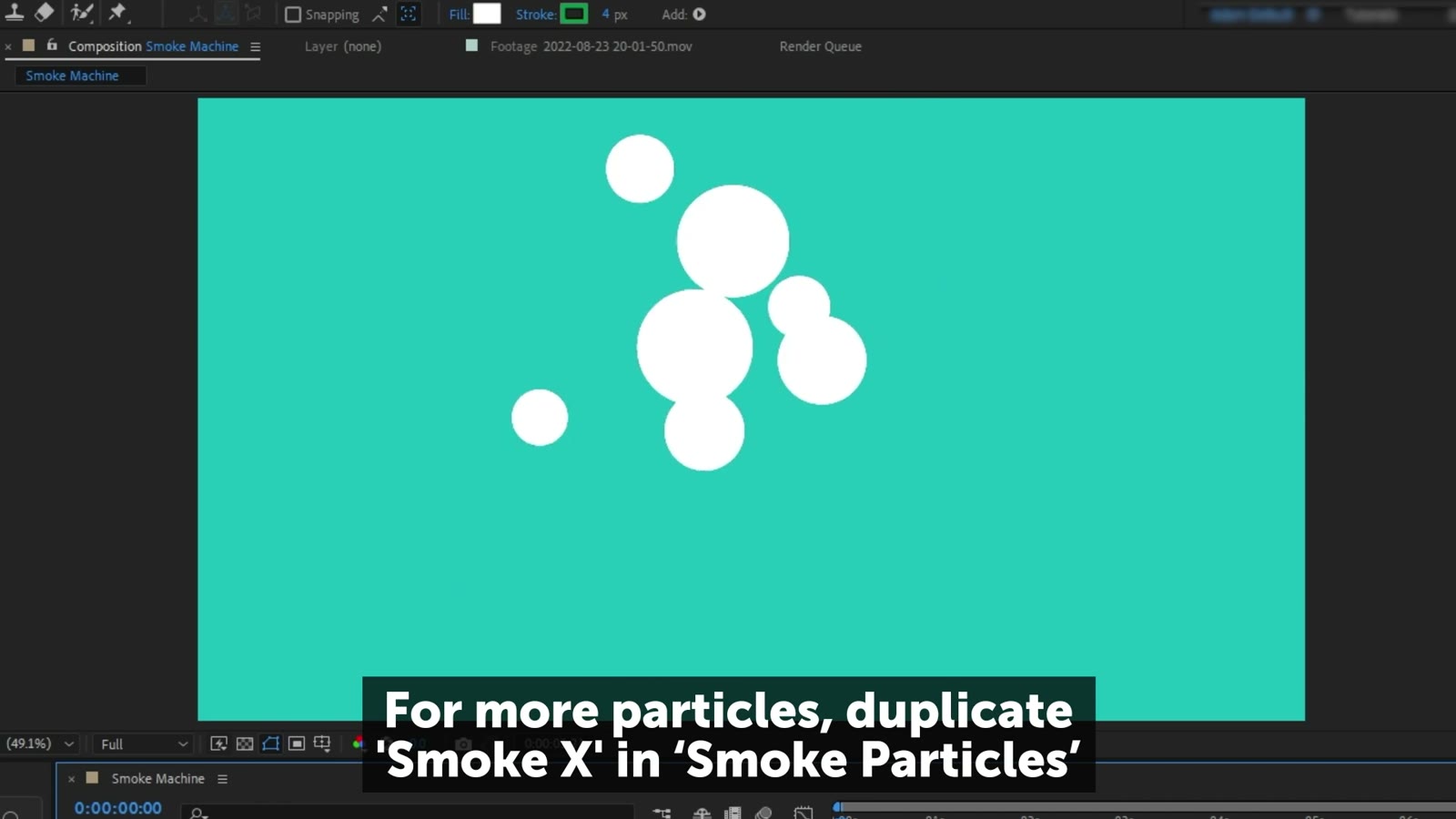
Smoke Machine
Emits procedural smoke from a point, with plenty of options to customise it.
 0:28
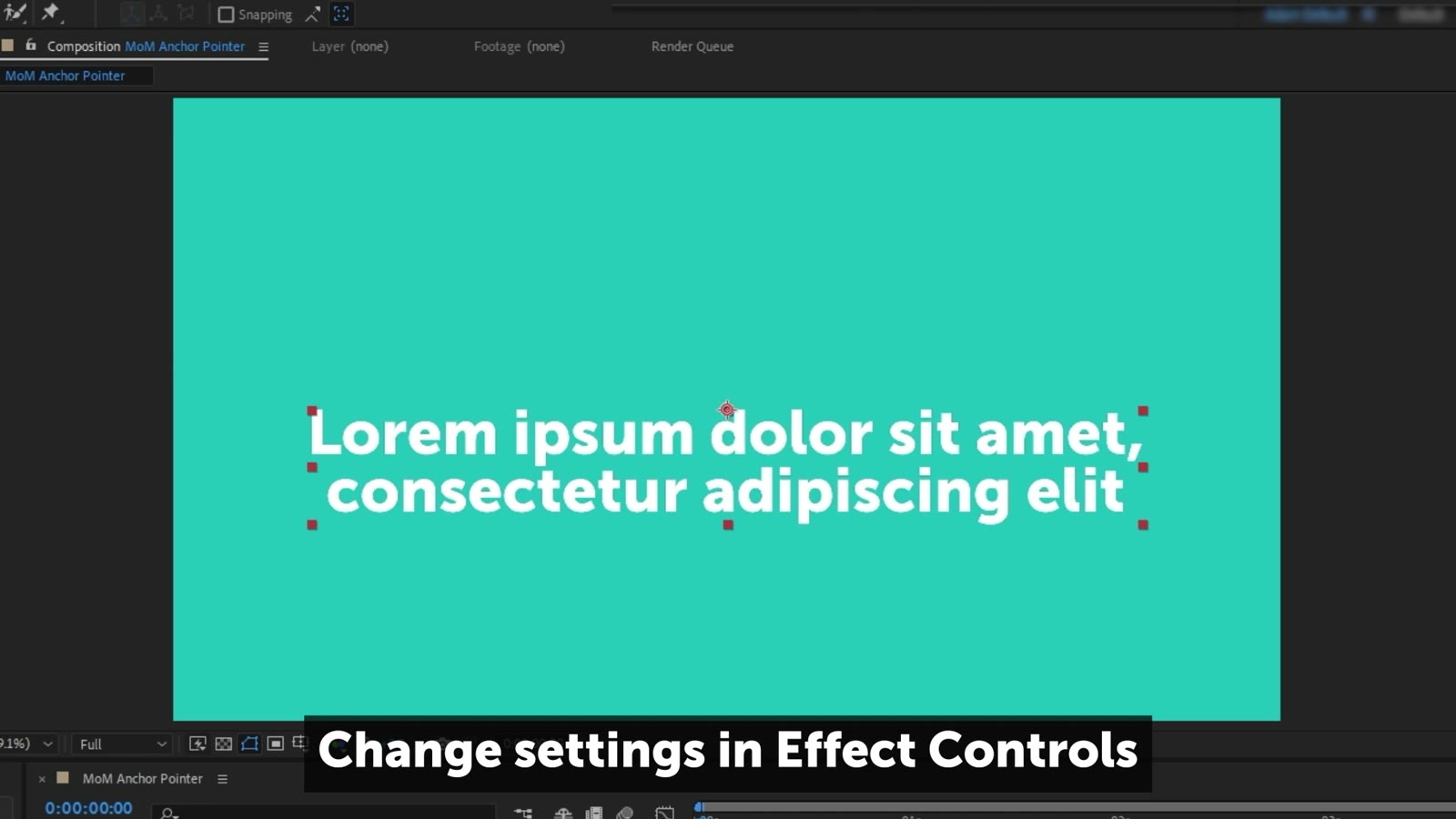
Anchor Pointer
Moves a layer's anchor point with separate X and Y controls, and keeps it in place when the text changes.
 0:55
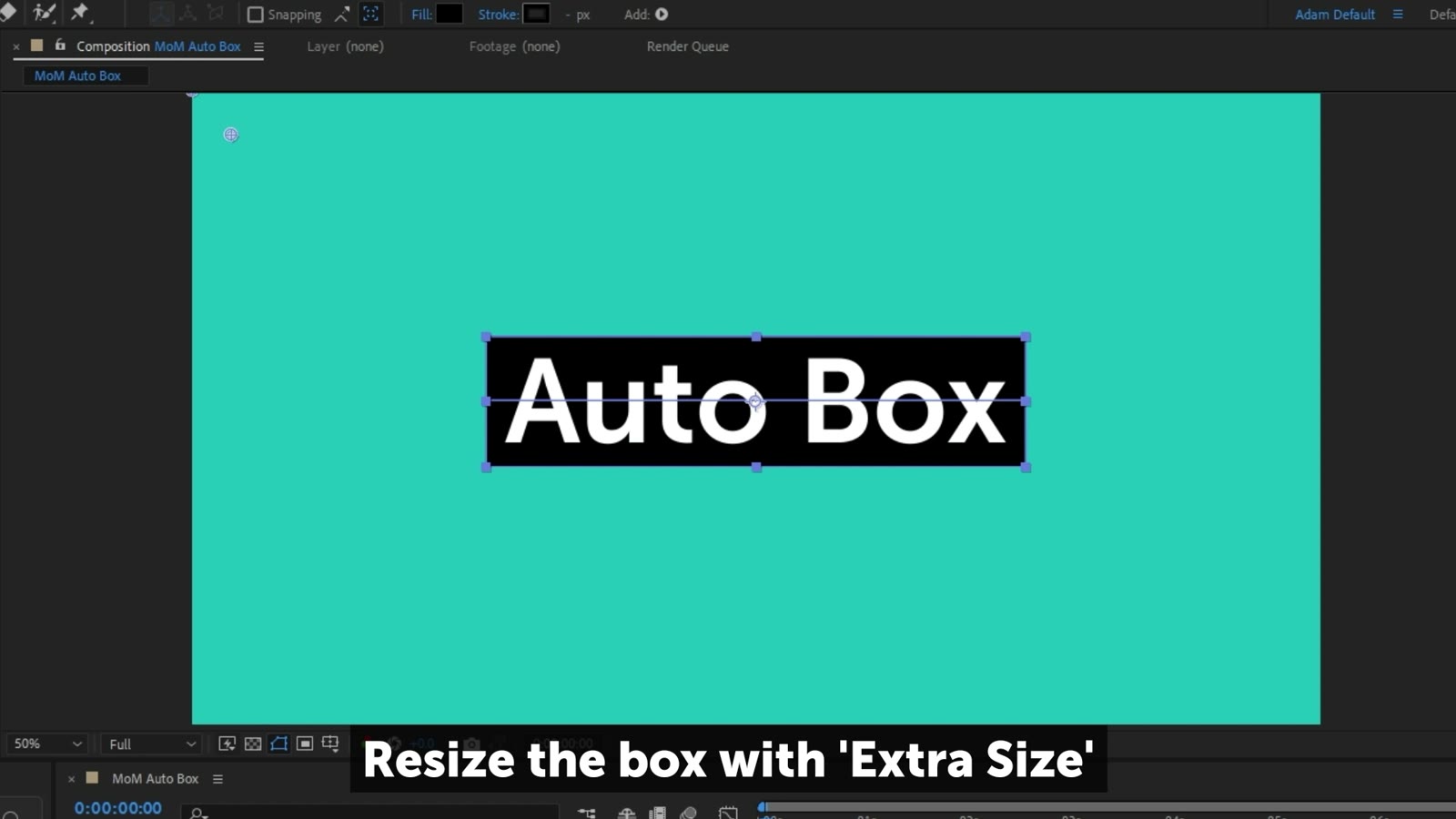
Auto Box
Makes a box that fits any layer in an instant, handy for subtitles and alpha mattes.
 0:29
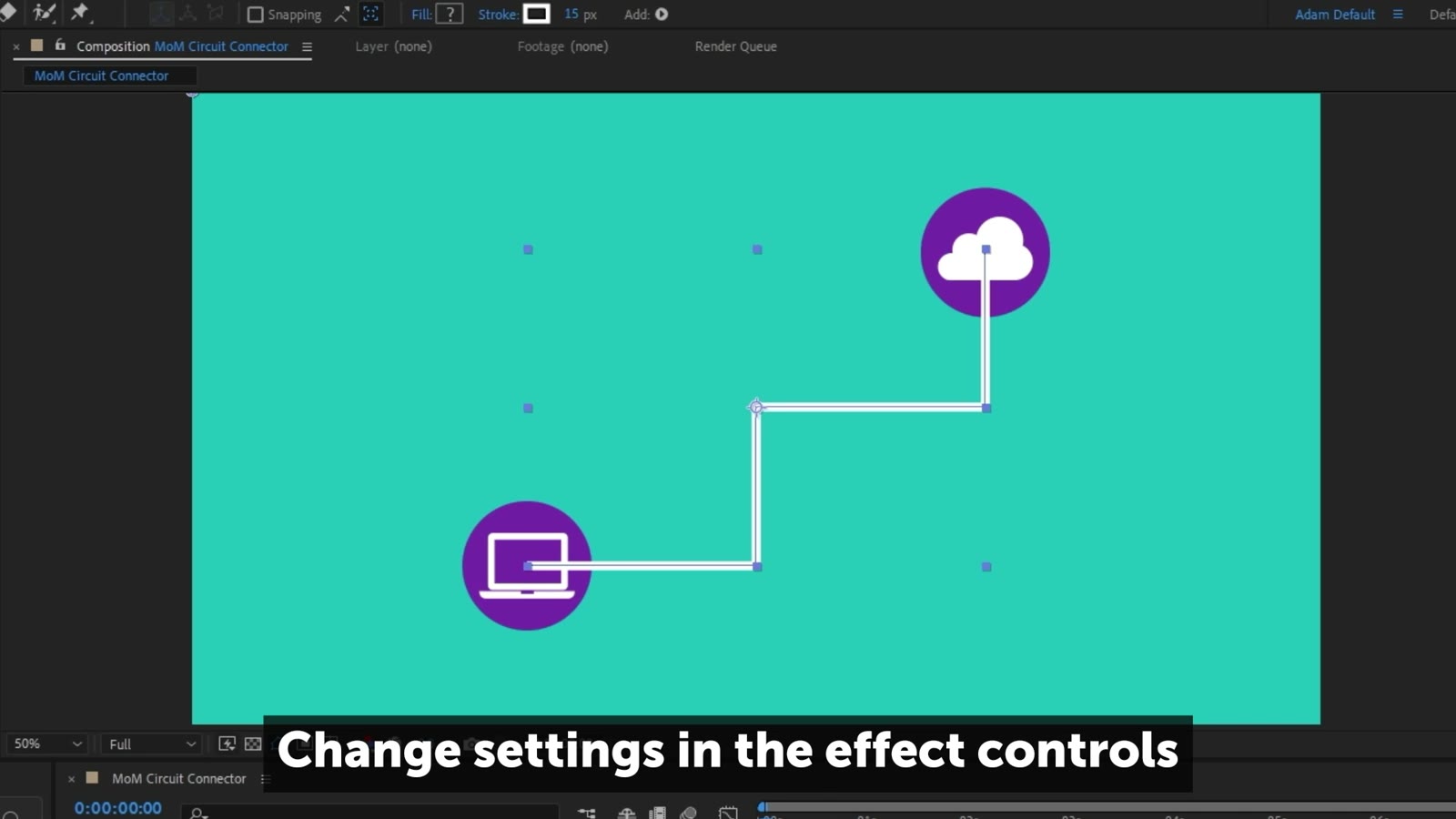
Circuit Connector
Draws a line between two layers, with joints, for a circuit board look.
 1:02
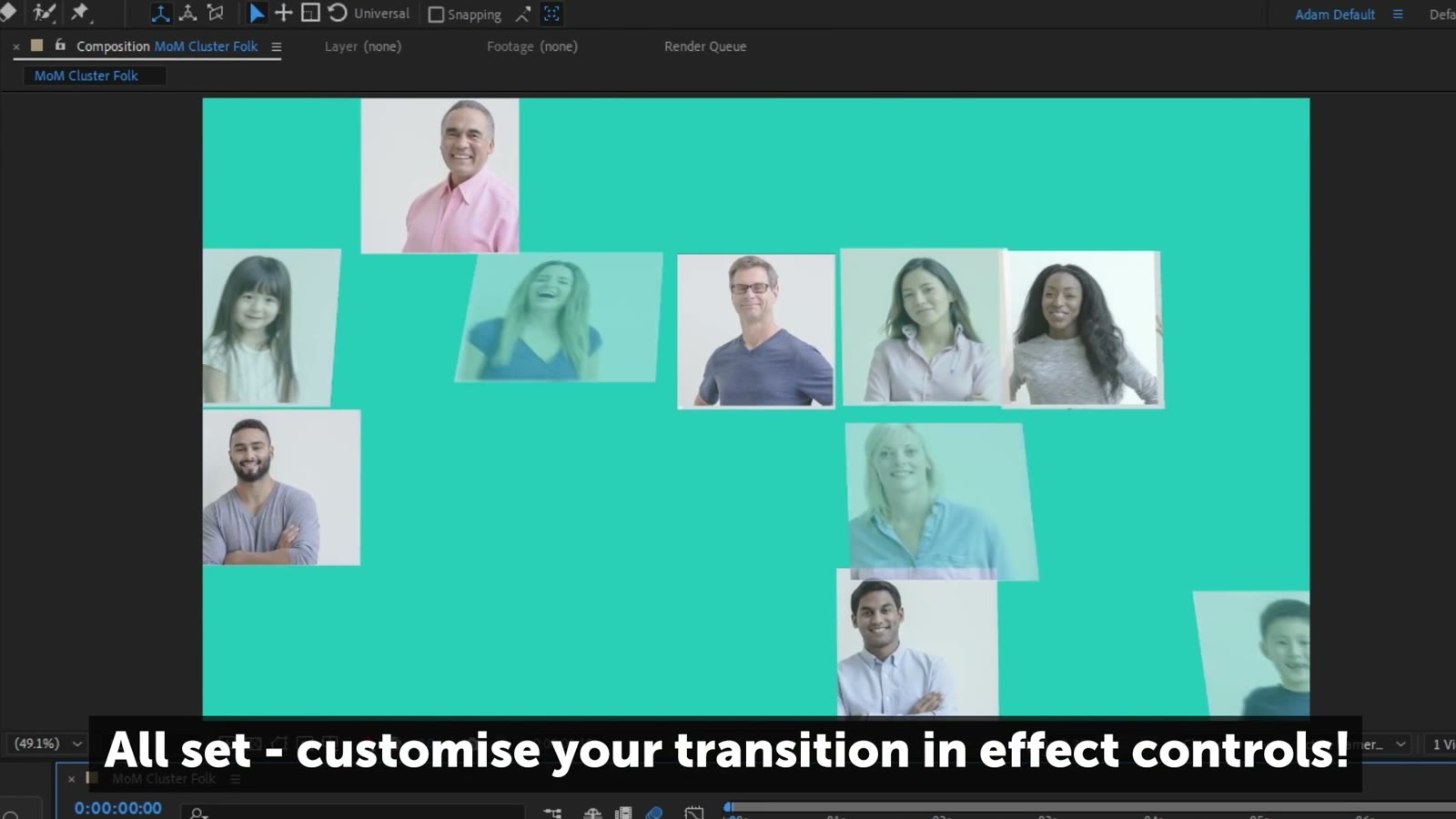
Cluster Folk
Controls a grid of rectangles and animates them in and out, made for footage split into a grid, like a video call.
 0:16
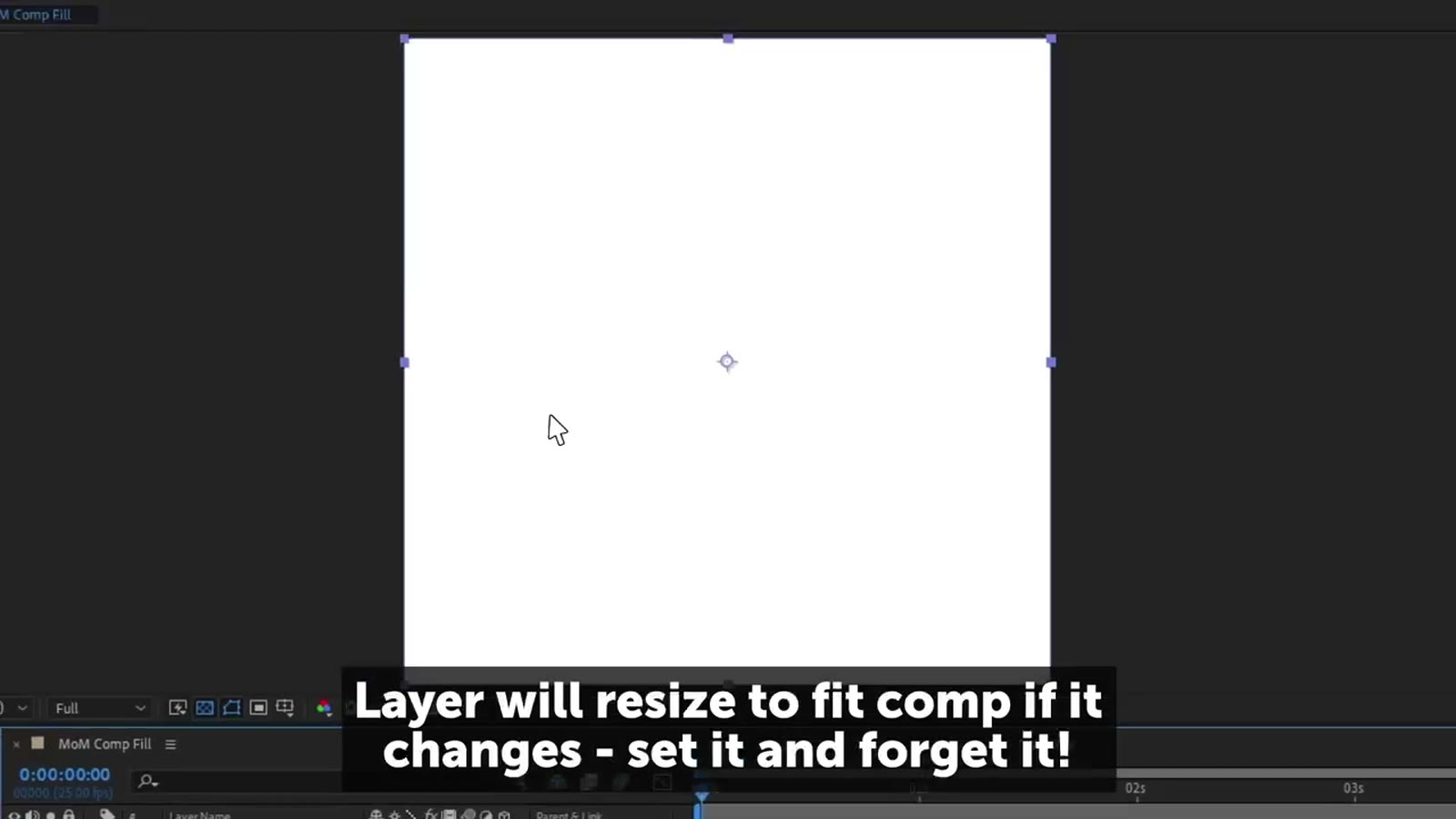
Comp Fill
Fills a shape layer to the size of the comp, like a solid but self-contained, auto-sizing and easier to customise.
 0:33
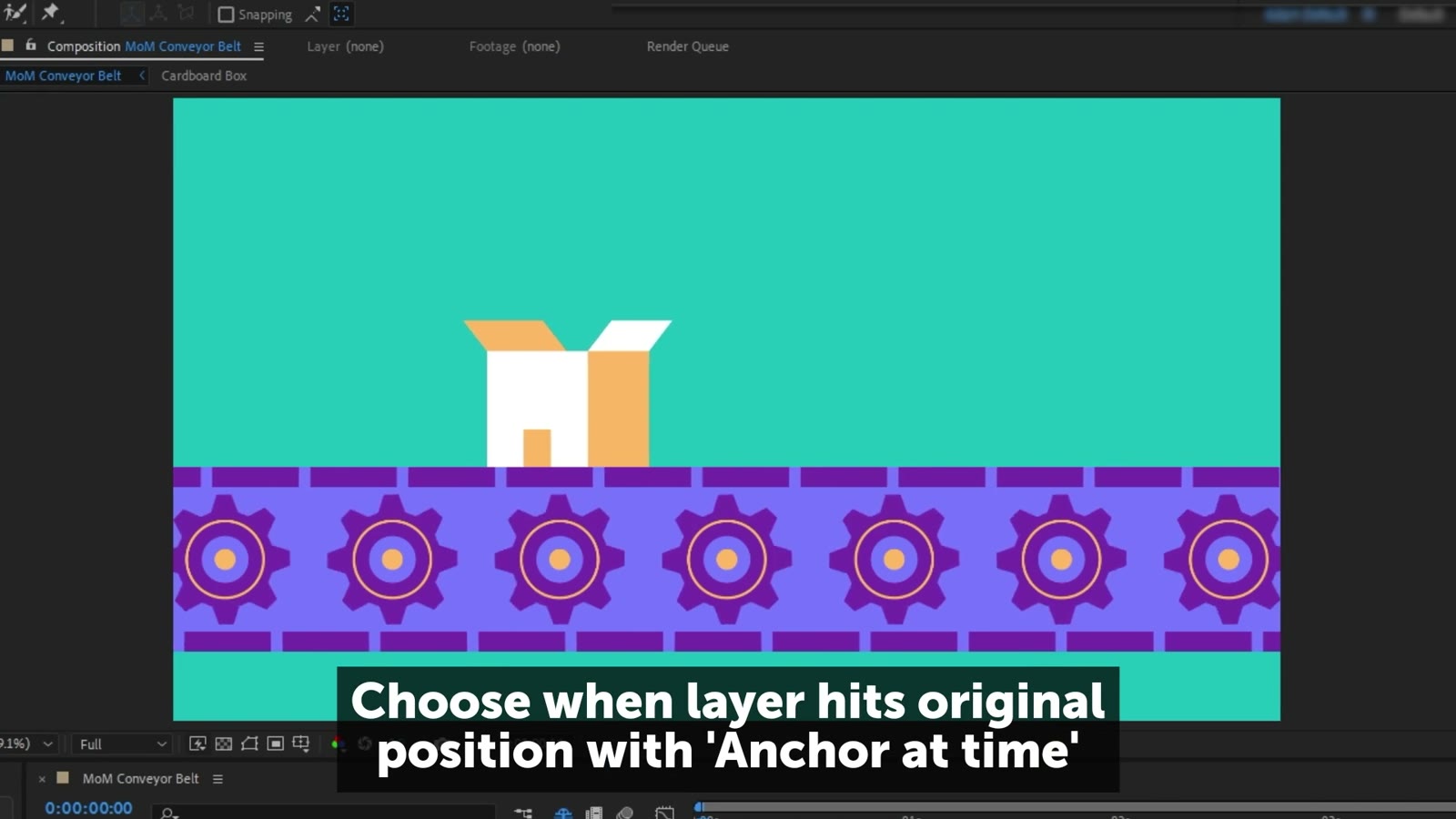
Conveyor Belt
Moves a layer at a constant speed in any direction, for as long as you need.
 0:22
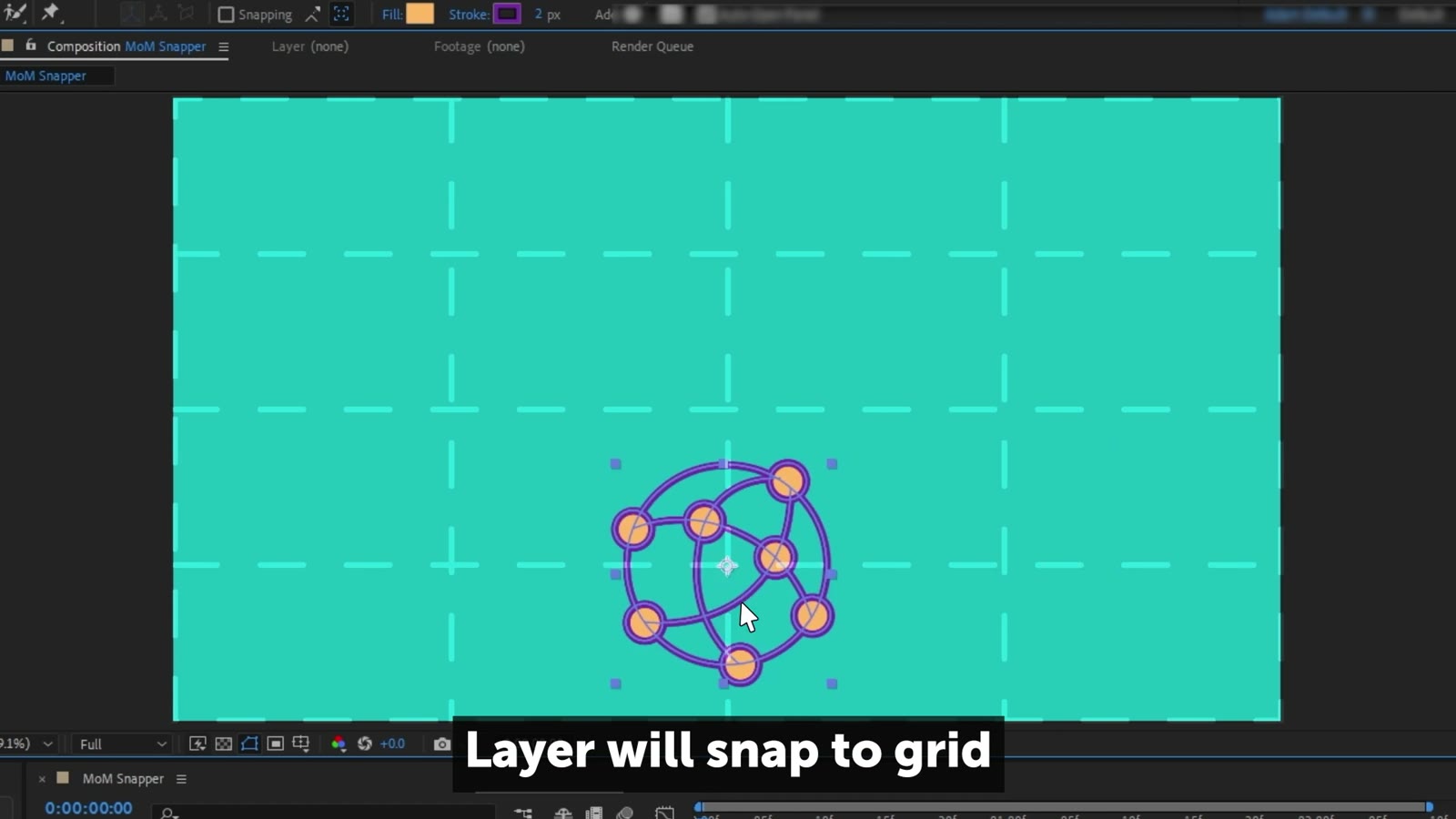
Grid Snapper
Snaps a layer to any grid size, so an eyeballed alignment is exact every time.
 0:29
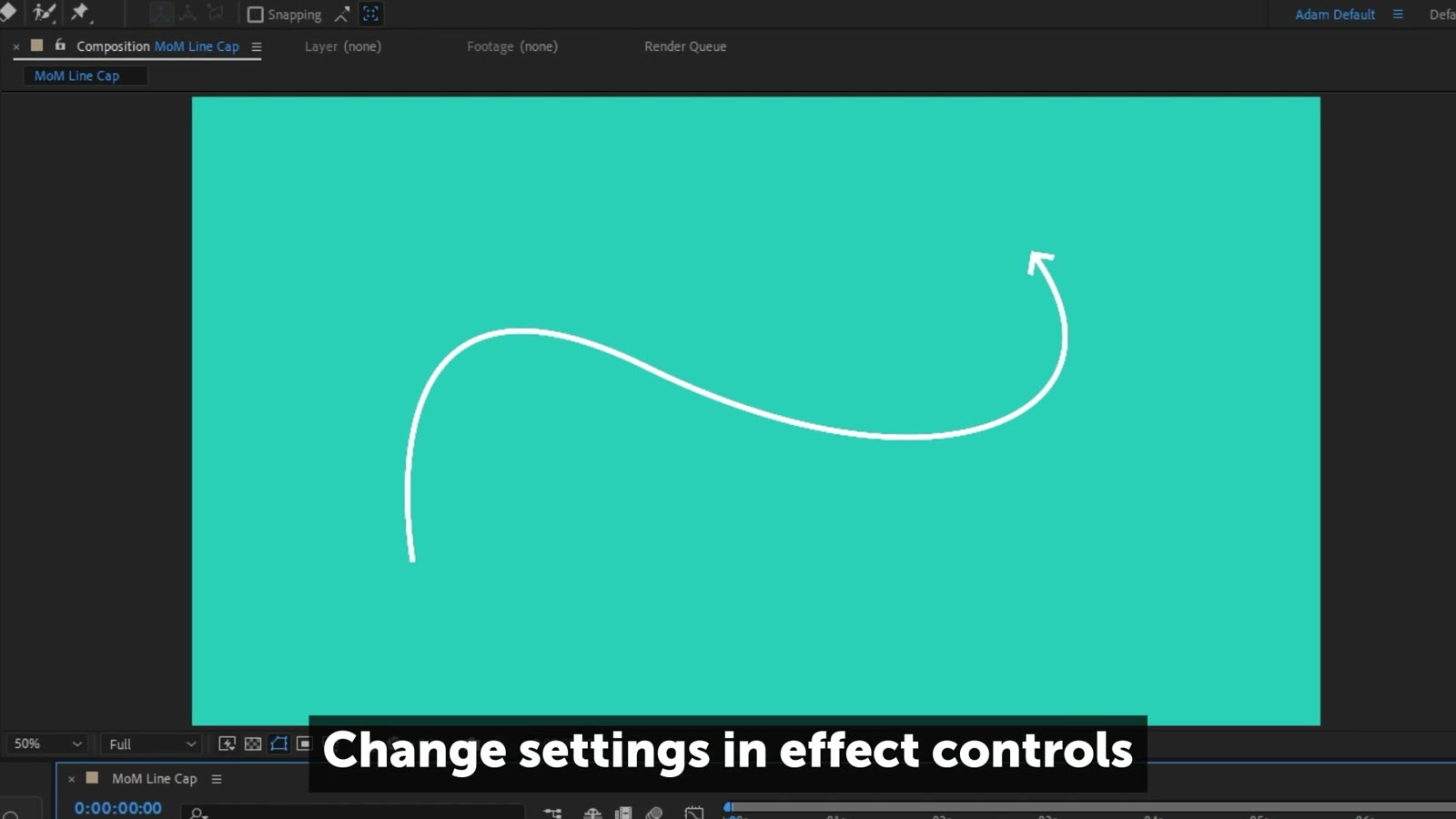
Line Cap
Adds a shape to the end of any line, quick to set up, easy to customise, and happy alongside trim paths.
 0:28
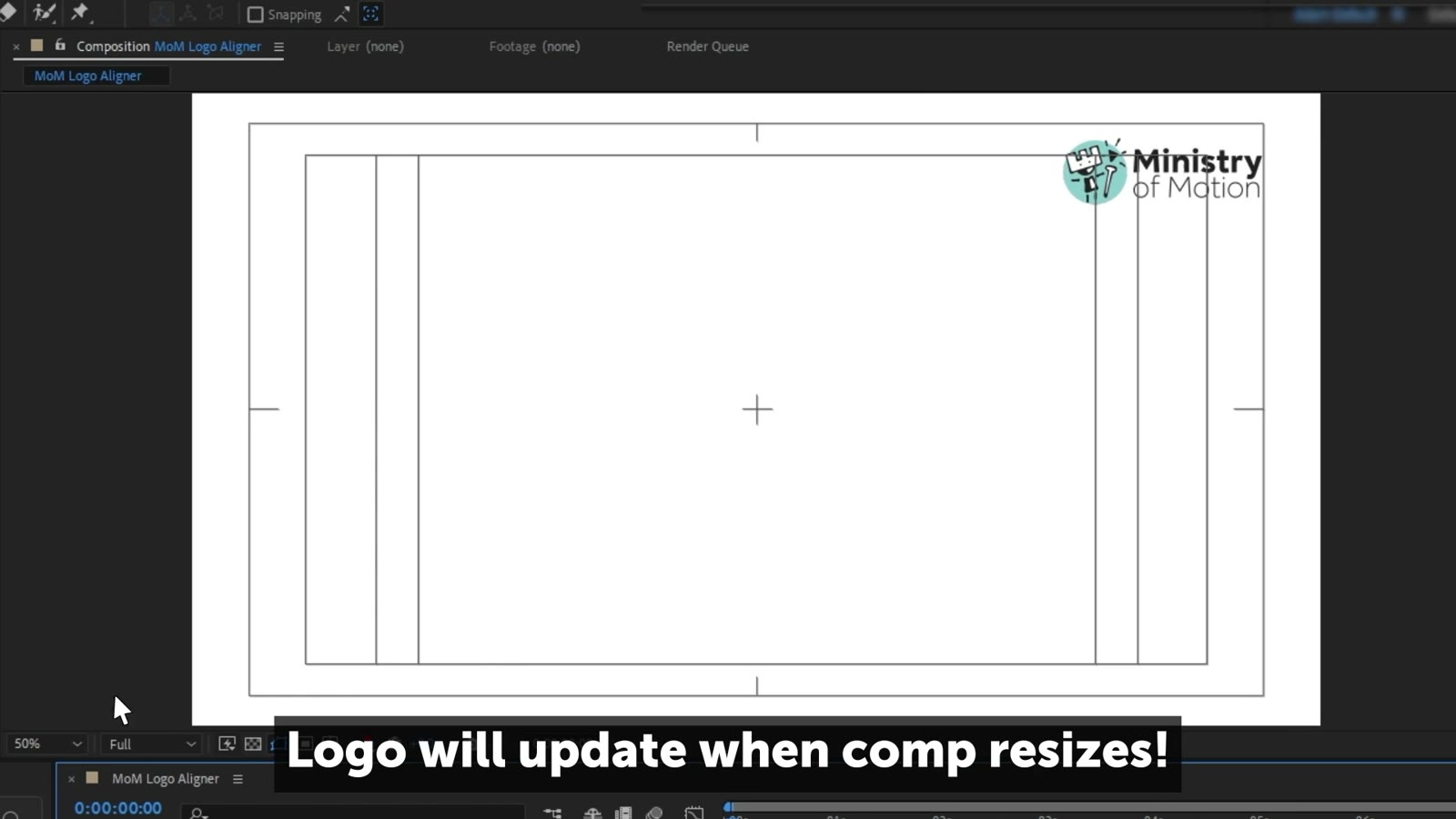
Logo Aligner
Aligns a logo to the safe margins of your composition, quickly and precisely.
 0:17
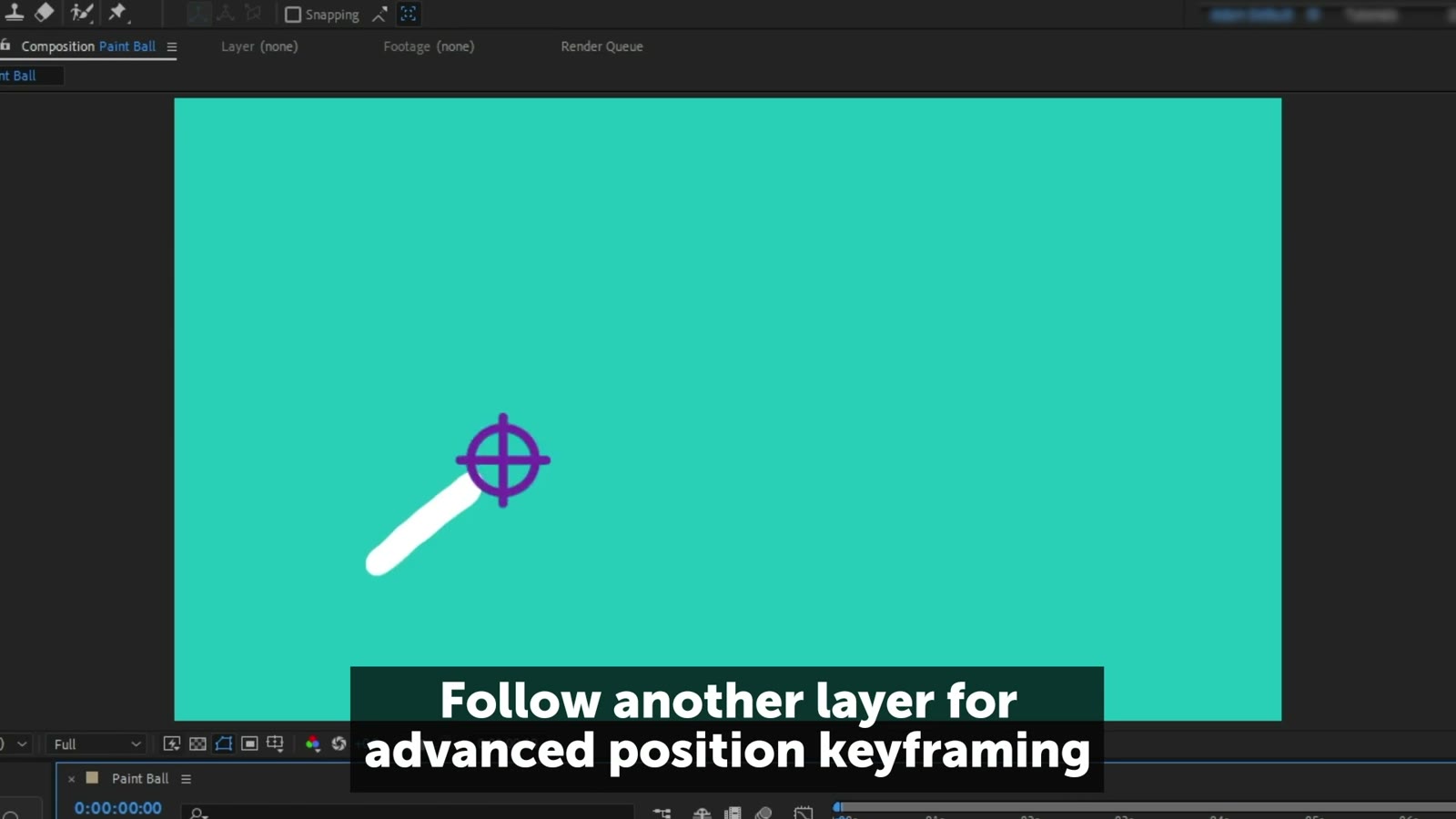
Paint Ball
An organic moving paint ball that you can keyframe or set to follow another layer.
 0:30
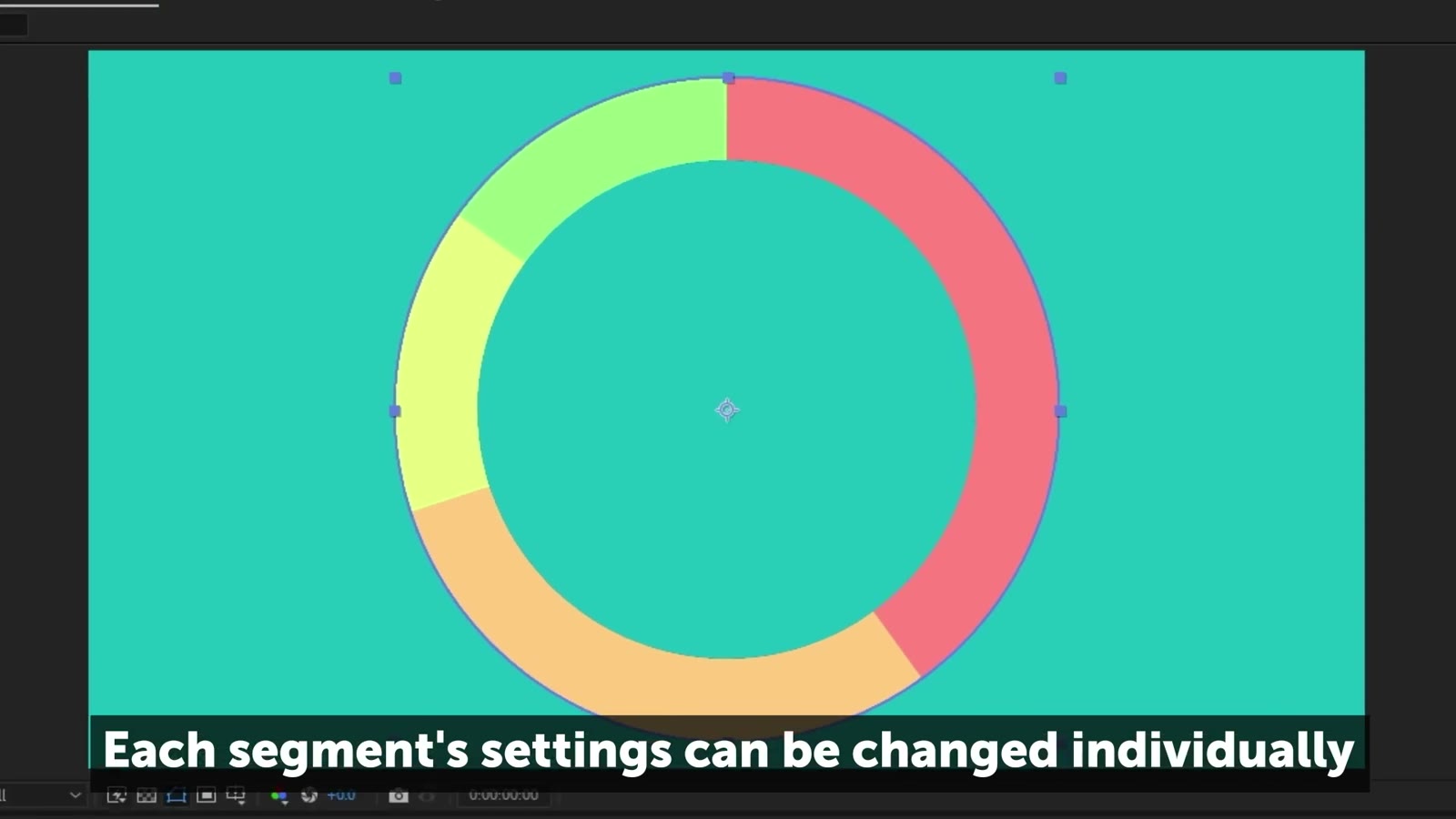
Pie Chart
A customisable pie chart with up to ten segments, each controlled and animated separately.
 0:12
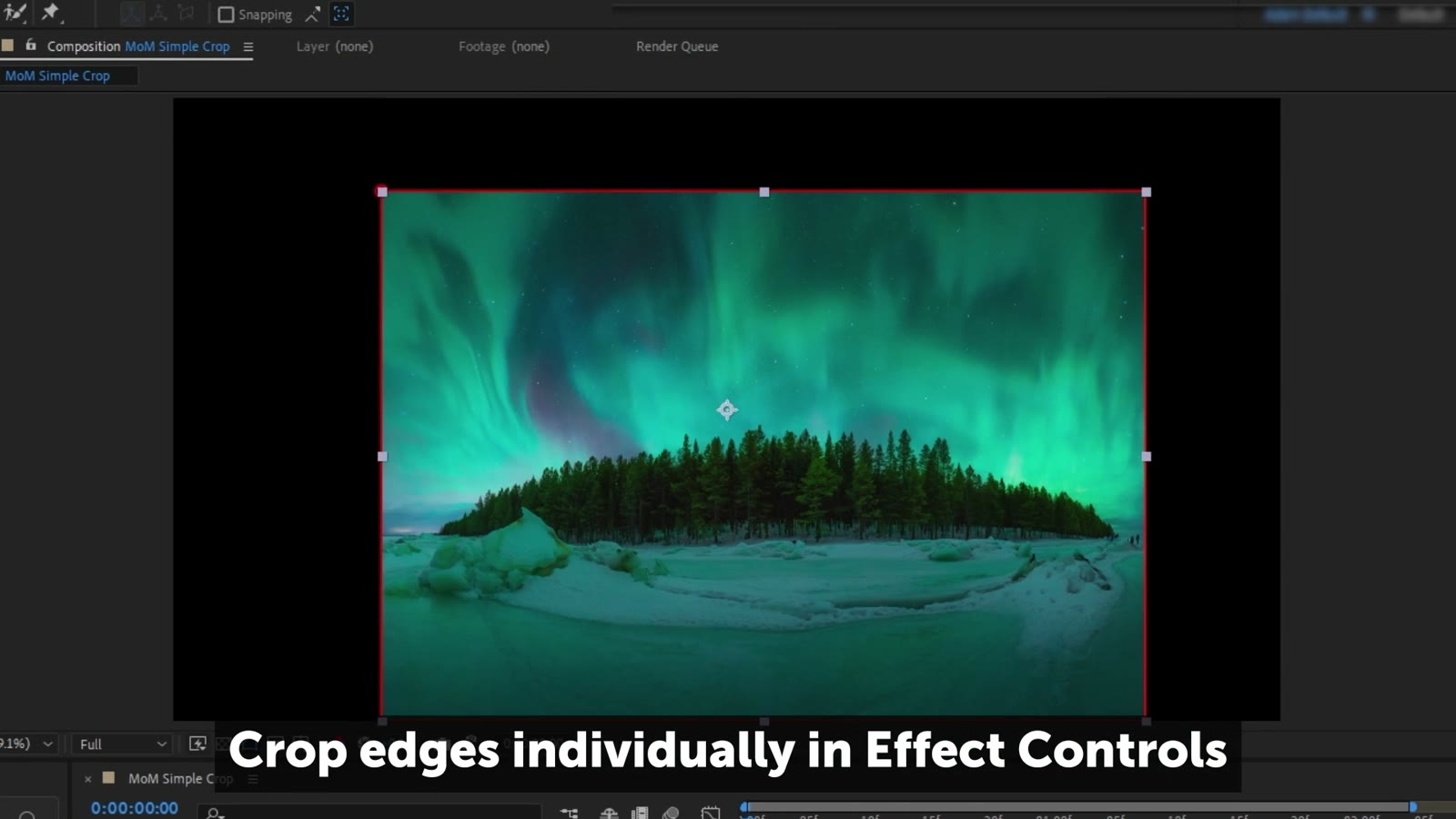
Simple Crop
Crop a layer from each edge with simple controls, no pre-comping necessary.